Horizon Chrono: a free sky watch face for Garmin AMOLED watches
Horizon Chrono is a free living-sky and sun-arc watch face for supported round AMOLED Garmin watches, including the listed Forerunner, fēnix and Venu models. Set the look and four data fields on your watch or in the Connect IQ phone app; enter your event countdown and weekly plan in the phone app.
Get it free on the Connect IQ StoreSubmitted October 31, 2026 and in Garmin's review; the store link works once it is approved.
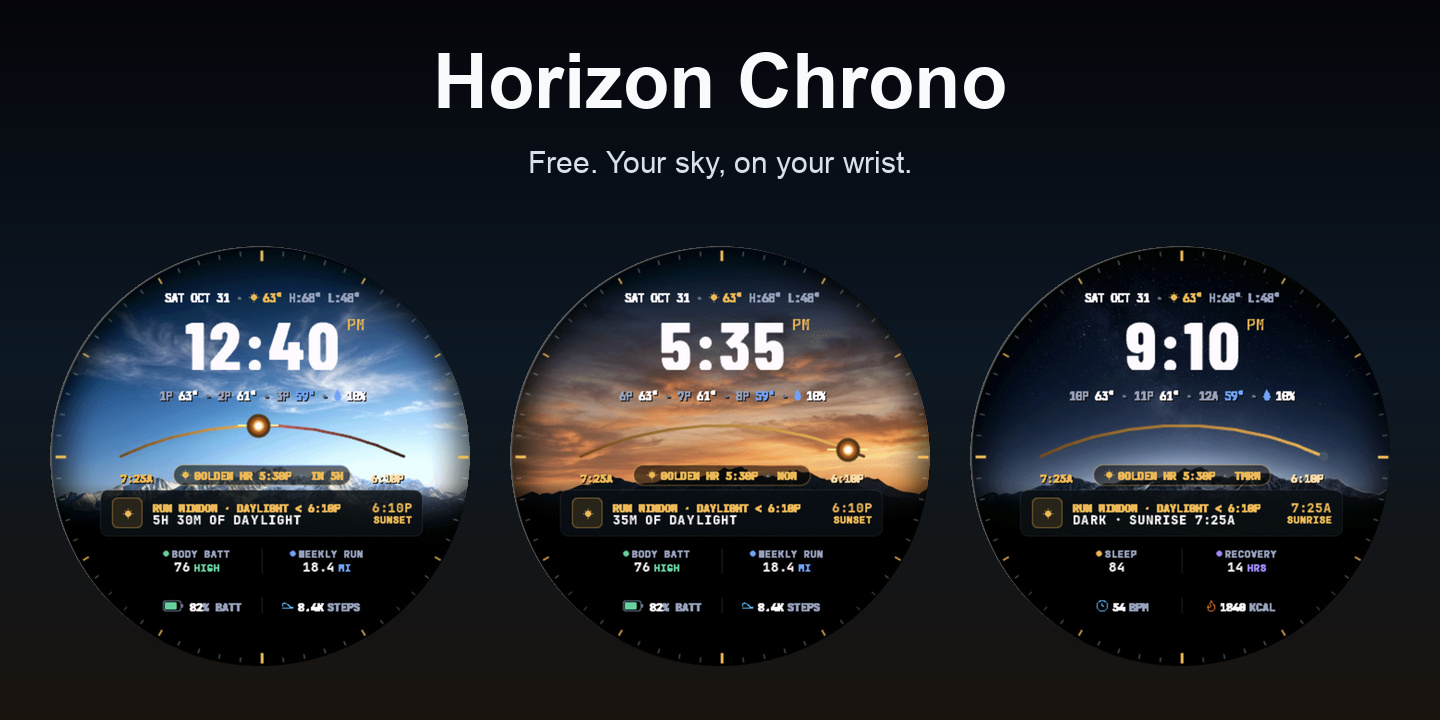
Screenshots use sample data.
A sky that follows your day
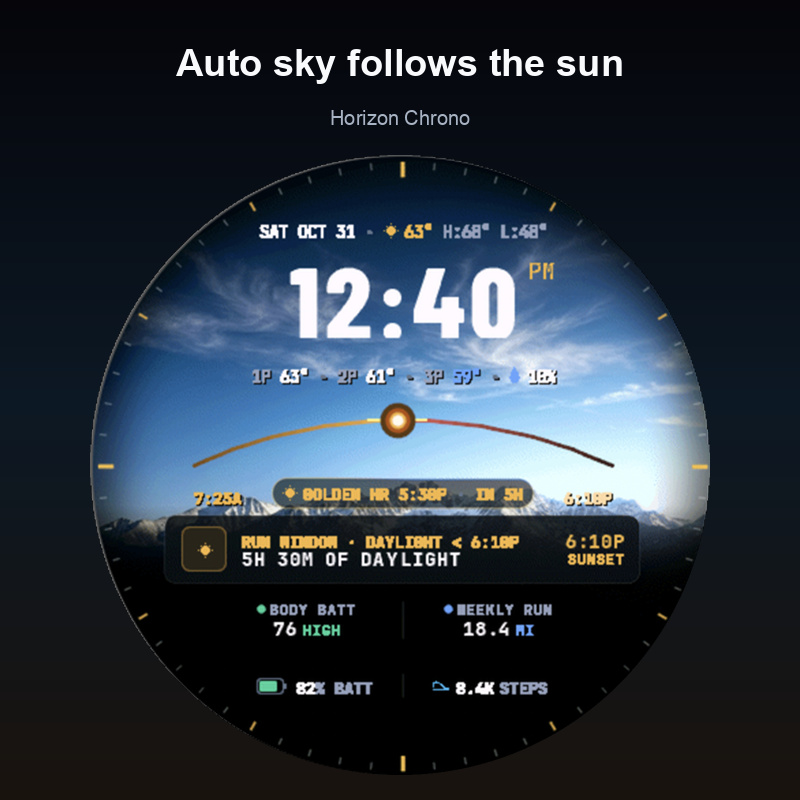
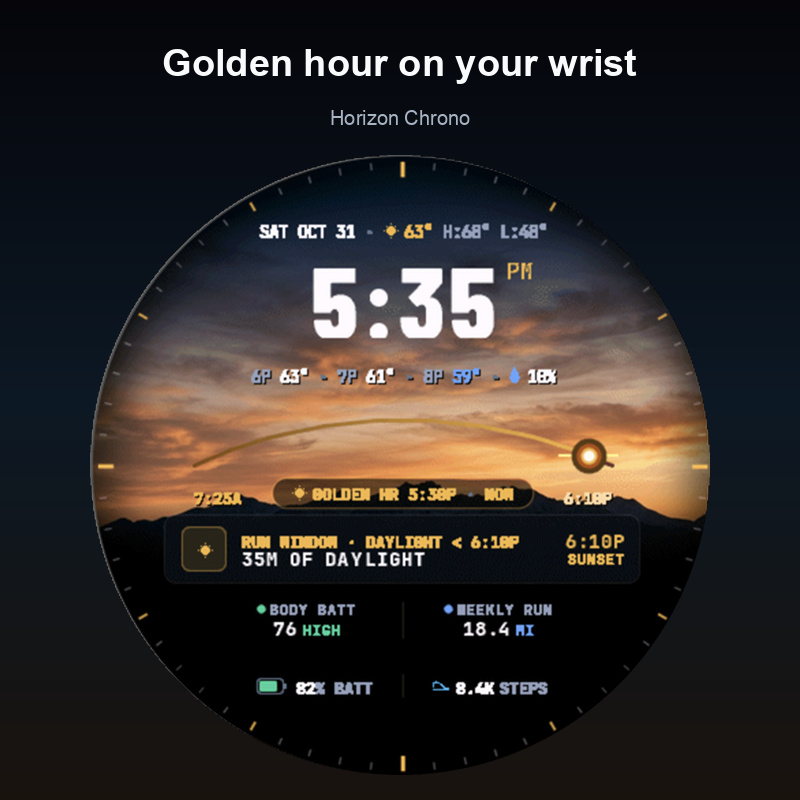
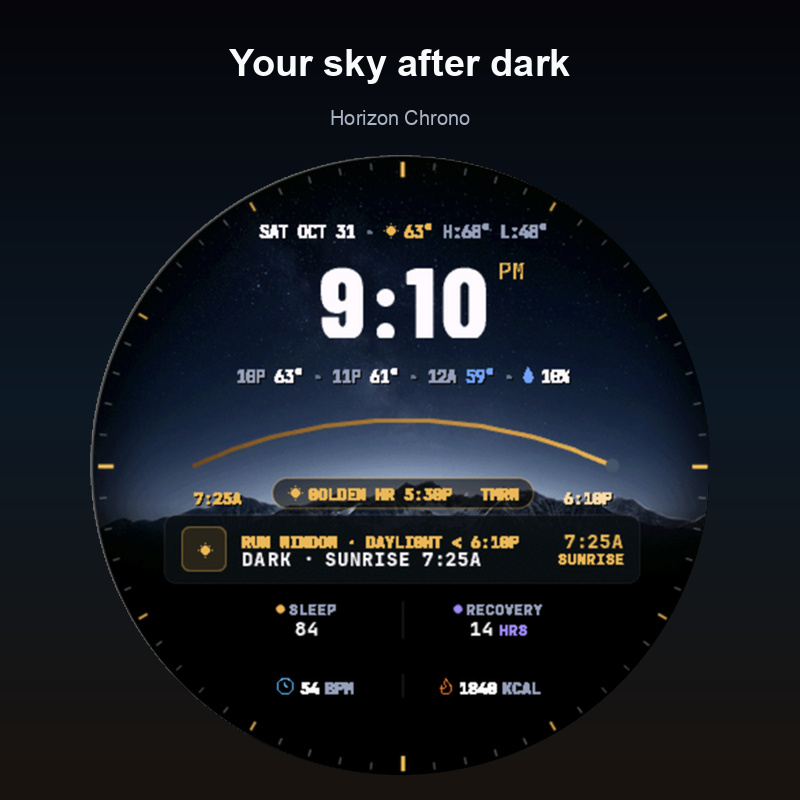
Auto sky follows the sun through day, golden hour and night. Prefer one look? Choose a fixed Golden, Day or Night sky instead.
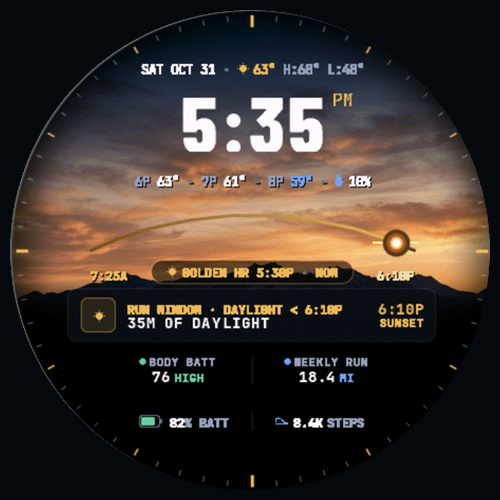
A sun arc and sunrise/sunset times sit alongside weather from your supported watch. The Run window card shows daylight left or the next sunrise. Choose 12- or 24-hour time, with seconds on or off; seconds appear only while your wrist is up.
Four fields. Your choice of 30 metrics.
All four data fields share the same choices. Put the information you use in any field, or turn a field off.
- Battery
- Steps
- Calories
- Active minutes (today)
- Intensity minutes (week)
- Floors
- Distance (today)
- Heart rate
- Body Battery
- Stress
- Sleep score
- Recovery time
- Training status
- VO2 max (run)
- Weekly run distance
- Weekly bike distance
- 5K predictor
- 10K predictor
- Half marathon predictor
- Marathon predictor
- Pulse Ox
- Respiration
- Notifications
- Next calendar event
- Altitude
- Barometer
- Event countdown
- Next sunrise/sunset
- Solar input
- Temperature
Availability depends on your watch and its data. Missing values show --. Long-press a field to open its watch widget where available, or choose “Change what this shows” to cycle field choices instead.
The Training card brings together training status, recovery time, running VO2 max and a 5K prediction.
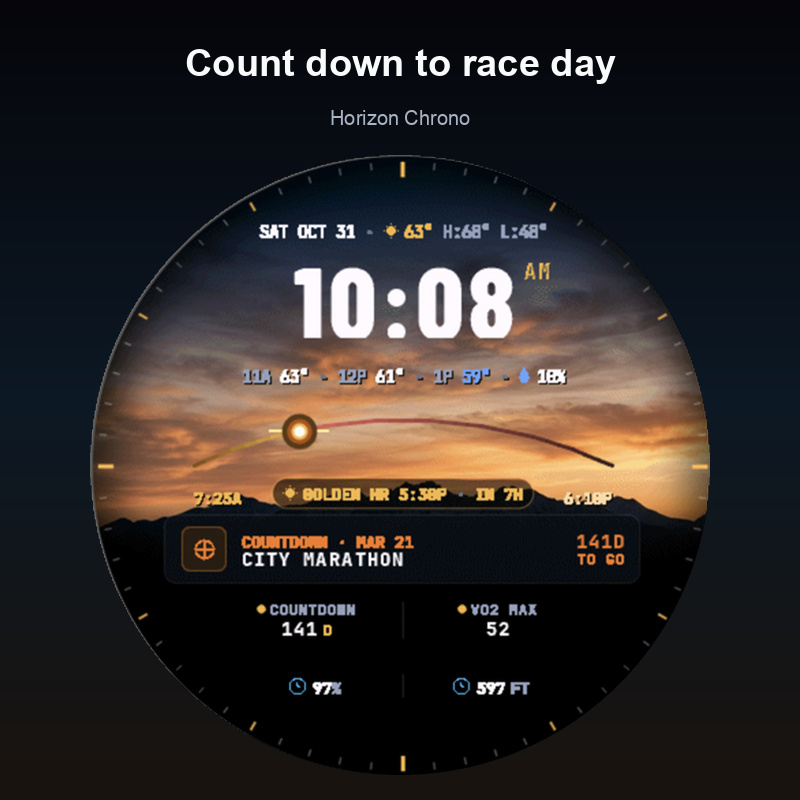
Count down to a race or event
Give your next event a name and date in the Connect IQ phone app. Choose the Event countdown card to see it on your watch face, or choose event countdown for any of the four fields.
Open Settings, enter the event name and select its month, day and year, then save.
Your weekly plan, one day at a time
In the Connect IQ phone app, open Settings and enter a short plan for each day under Plan: Monday to Plan: Sunday. Choose the My week card to see today's plan on the face. From 20:00, it shows tomorrow's plan.
Always-on and battery
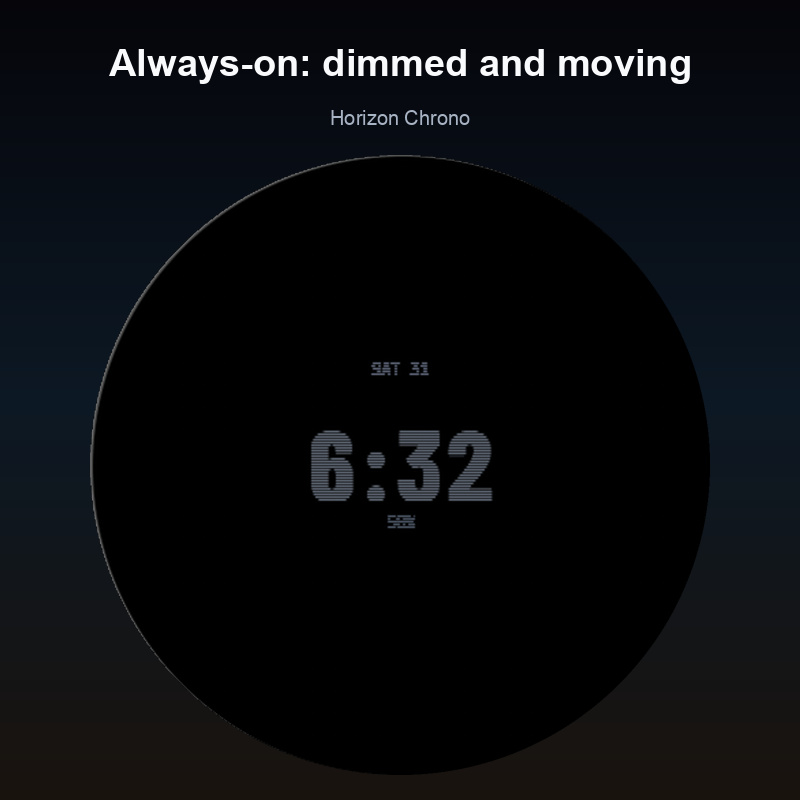
On supported watches with always-on enabled, the minimal always-on view dims and moves lit pixels every minute to help protect the screen.
Battery use varies by watch, display settings and selected fields. You can turn seconds off; when enabled, they appear only while your wrist is up.
How to install
Once approved, use the Connect IQ phone app to install Horizon Chrono on a supported watch.
- Open the Horizon Chrono Connect IQ listing on your phone.
- Check your exact watch model and variant in the listing's device list, then install the watch face through the Connect IQ app.
- On your watch, hold UP/MENU → Watch Face and select Horizon Chrono.
How to customize
On your watch
Hold UP/MENU → Watch Face → Customize. Select a setting, then choose its value.
Change the sky, time format, seconds, four fields, card and long-press action. Menu names and button labels may vary by watch.
In the Connect IQ phone app
Select Horizon Chrono from your installed watch faces and open Settings.
Every setting is on one page: sky, time format and seconds; the card, four fields and long-press action; the event name and date; and your daily plan entries. Change what you need, then save.
Event and weekly plan entries are set in the phone app.
Supported watches
Horizon Chrono supports the following round AMOLED Garmin watches. Check your exact model and variant against this list and the device list on the Connect IQ page. MIP and rectangular screens are excluded.
- Forerunner 70, 165, 165 Music, 170, 170 Music, 265, 265S, 570, 965, 970
- fēnix 8, 8 Pro, 9, 9 Pro, E
- epix (Gen 2), epix Pro (Gen 2)
- Venu 2, 2S, 2 Plus, 3, 3S, 4
- vívoactive 5, 6
- Instinct 3 AMOLED, Instinct Crossover AMOLED
- MARQ (Gen 2), MARQ (Gen 3)
- quatix 7, 7 Pro, 8, 8 Pro
- tactix 7 AMOLED, tactix 8
- D2 Air X10, Air X15, Mach 1, Mach 1 Pro, Mach 2, Mach 2 Pro
- Descent G2, Mk3, Mk3i
- Approach S50, S70, S72
Privacy
Horizon Chrono collects nothing and makes no network calls. It uses location only through weather and sun data available on your supported watch.
Frequently asked questions
Is Horizon Chrono really a free watch face?
Yes. Every feature is free. There is no trial, subscription, unlock code or paid tier.
Does it drain the battery?
Battery use varies by watch, display settings and selected fields. You can turn seconds off. Always-on mode dims and shifts the display every minute.
Which watches are supported?
Only the round AMOLED models and variants in the supported-watches list on this page are supported, including Forerunner 970, Forerunner 965, fēnix 8 and the listed Venu models. Check your exact model against that list and the device list on the Connect IQ page. MIP and rectangular screens are excluded.
How do I set a race or event countdown?
Open Horizon Chrono in the Connect IQ phone app and open Settings. Enter the event name and select its month, day and year, then save. Choose the Event countdown card or select event countdown in one of the four data fields.
Why does a field show --?
The metric may be unavailable on your watch, or its data may be missing. Horizon Chrono shows -- for missing values.
Does it need my phone?
The face runs on the watch. Use the Connect IQ phone app to install it, set your event and enter your weekly plan. Look and data-field settings are also available on the watch. Weather and sun details depend on data available on your supported watch.
How do I change the four data fields?
On the watch, hold UP/MENU, open Watch Face, then Customize and select a field setting. On the phone, open Horizon Chrono’s Settings in the Connect IQ app. Each of the four fields offers all 30 metrics. Choose “Change what this shows” for the long-press action to cycle field choices instead of opening the watch’s widget where available.
How do I get support?
Email support@sparkwellstudios.com with your watch model and a description of the question or problem.
Questions or ideas?
Write to support@sparkwellstudios.com. Include your watch model so we can help.